SPS Menu Linking
Since PCS is designed differently from SPS but serves a similar purpose in adult interactions, convenience is highly valued by most users — especially without having to switch back and forth between menus. Eventhough, PCS wasn't made to directly intergate with SPS, we still can link their menu together at least.
How to Link
- Select any SPS Socket that you want to use to control the PCS menu.
- Enable
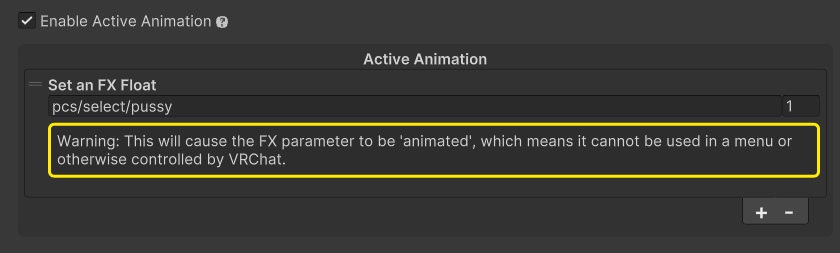
Enable Active Animationoption. - Click
Add Action +and chooseSet an FX Float - Enter the desired PCS menu parameter into the field. A full list of menu parameters is provided below.
Tip
For Custom Position, you can assign both the sound parameter and the custom position parameter together, for example: pcs/select/pussy + pcs/select/custom1
| Parameter | Description |
|---|---|
pcs/select/mouth | Toggle on/off mouth menu |
pcs/select/boobs | Toggle on/off boobs menu |
pcs/select/pussy | Toggle on/off pussy menu |
pcs/select/ass | Toggle on/off ass menu |
pcs/select/custom1 | Toggle on/off custom position #1 |
pcs/select/custom2 | Toggle on/off custom position #2 |
pcs/select/custom3 | Toggle on/off custom position #3 |
pcs/select/custom4 | Toggle on/off custom position #4 |
pcs/select/custom5 | Toggle on/off custom position #5 |
pcs/select/custom6 | Toggle on/off custom position #6 |
pcs/select/custom7 | Toggle on/off custom position #7 |
pcs/select/custom8 | Toggle on/off custom position #8 |
warning
Please refrain from using Depth Animation for this setup, as it will repeatedly toggle PCS off when the plug is not inserted and back on when it is inserted.
Result
- The Sound & Location menu parameter assigned to an activated SPS socket will also be automatically toggled on.
- For example, adding
pcs/select/pussyto SPS pussy socket will also toggle on PCS pussy sound when Pussy Socket is on.