Installation
This guide will explain how to install PCS system onto your avatar using non-destructive tools such as Modular Avatar and VRCFury. Manual installation is not yet supported. For a video tutorial, please refer to the tutorial video playlist
1. Preparation
First, make sure your have avatar project with the latest version of SDK. The minimum version is 3.7.0, but using the latest version is strongly recommended.
Next, install one of the following avatar tools based on your preference. The tool is required to install PCS into your avatar.
- Modular Avatar : A non-destructive tools for modularizing avatars and for distributing avatar components.
- VRCFury : This tool is recommended as you’ll already need it in your project for SPS.
- You can install both tools if you want.
Then, install (Modular)PCSv1.xx.unitypackage if you prefer to use Modular Avatar version. Otherwise, install (VRCFury)PCSv1.xx.unitypackage for VRCFury version.
Please always reinstall or apply PCS again to your avatar after updating the PCS package. This is to update PCS prefab and prevent mismatched settings between old and new prefabs.
2. Configuration
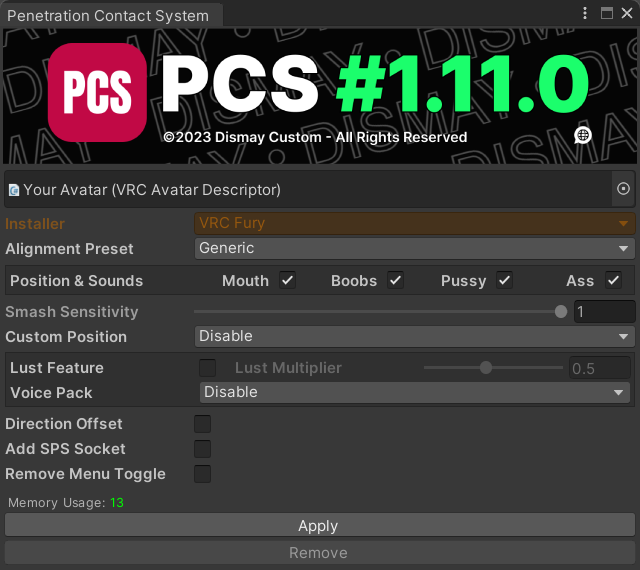
This is the installation tool for PCS. With this tool, you can configure and adjust the available features as needed. Once you click Apply, the PCS prefab and related assets will be generated and added to your selected avatar.
- To open the tool, go to
Dismay Custom > Penetration Contact System > Setup Tool, drag and drop your avatar into the box and you will see a window like this:
If you cannot find the tool, please check and fix any errors shown in the Console window. Errors (red text) will prevent the tool from being generated and it will not appear.
Language
Click to change the tool language between English, Japanese, Korean, Thai, and Chinese.
- We use ChatGPT to help with the translation. If the translation is inaccurate, please let me know.
Installer
The avatar tool for this PCS version. You cannot change this normally without importing a new unity package.
Alignment Preset
The detector and audio position presets include Mouth, Boobs, Pussy, and Ass. Multiple presets are available for many widely used avatars to ensure easier setup and compatibility. All presets were manually recorded based on the original FBX.
- You can use
Genericpreset for any avatar that does not have a dedicated preset available. PCS works with all humanoid avatars.
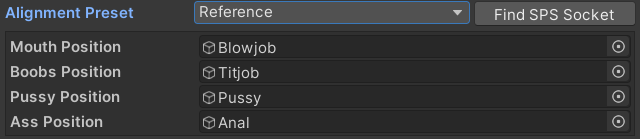
- Using
Referencepreset allows you to manually define the position by referencing other objects, such as an SPS socket location that you may have already properly positioned beforehand. - Use
Find SPS Socketbutton to search for Wholesome SPS Sockets and place them automatically.
Position & Sounds
Use this option to determine which sounds you want to enable or disable. Disabling certain sounds may slightly reduce parameter usage by 1.
Smash Sensitivity
This value controls the impact detection sensitivity. Lowering this value means you will need to apply stronger movement to trigger the sound. Full value at 1.0 is recommended, unless you feel it is too easy to trigger.
Custom Position
This is a customizable additional position for PCS. You can override default PCS position with this custom position. For example, you may use it to add additional sound positions for hands, feet, or toys.

- You can select up to 8 additional positions. Including the main positions, this makes a total of 12. You can freely drag and place each position as desired and customize the menu name.
- Use the buttons to auto select hands and feet positions. You may need to adjust the position and rotation afterward.
Lust Feature
This is the satisfaction system that allows you to accumulate arousal points from insertions. Once the point reaches its maximum level, it will automatically trigger a climax effect. Additionally, this system unlocks the moaning sound feature.
- Lust Multiplier: This value allows you to control how easy or difficult it is to gain one arousal point per penetration.
Voice Pack
This is the moaning sound pack that plays during different types of penetration. It includes various categories and position-based variations, such as oral, light thrusting, heavy thrusting, and integration with the satisfaction system.
By default, there are 3 different voice packs, each varying in tone and age range. However, if you have your own voice pack, you can use this dedicated tool to replace the default audio.
Direction Offset
This option creates a special menu that allows you to rotate PCS freely. It is highly useful in practice, especially if you experience detection interruptions while performing complex poses, such as standing sex positions, which increases the chance of detection failure due to front-back movement that does not align with the direction of the hole (up-down).
Add SPS Socket
This option will automatically add SPS Sockets to all sound positions, including custom positions. The PCS menu can also be controlled directly through these sockets without manual menu linking.
- You don't have to use this option if you already have SPS setup on your avatar. Therefore, it will add unnecessary SPS.
- This option will not remove any existing socket from your avatar, it just add a new set of sockets.
Remove Menu Toggle
This option removes PCS sound position switching menu to saves 4 parameter units.
It is strongly not recommended for general use, as this will remove all sound position menus. Only use this option if you plan to toggle them using VRC Avatar Parameter Driver state behaviour or other similar functions.
3. Apply
After clicking the Apply button, PCS will be added to your avatar. Done!
- Various assets, including animator controller and menus, will also be generated per avatar.
These items can be found at
Assets/!Dismay Custom/Penetration Contact System/#GENERATE

Optional Steps
This is an optional step that you may skip. It mainly covers how to reposition the various sound locations and resize.
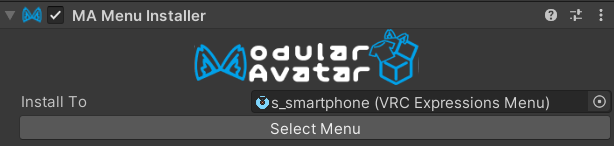
Select Menu Location
For VRCFury, you can add a menu name as a prefix to place the PCS menu inside it.
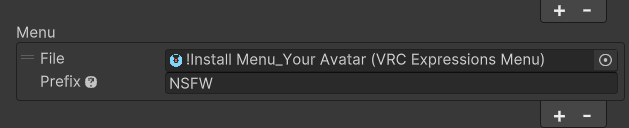
For Modular Avatar, you can click Select Menu button.
Position Adjustment
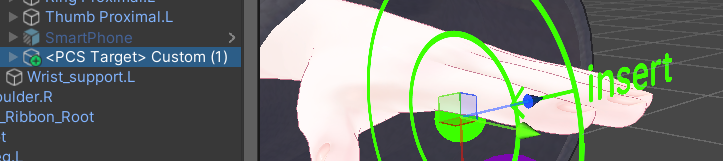
You can move or rotate <PCS Target> Xxx to achieve more precise positioning.
These positions determine where PCS will move when it is enabled through the menu. The position guide marker will indicate which direction it should be facing.
Scale Adjustment
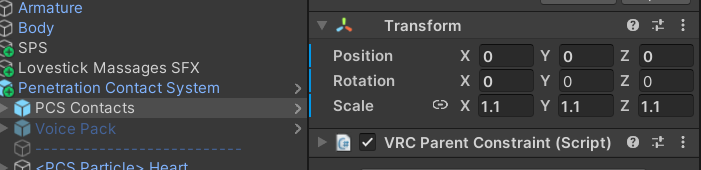
You can adjust the size of PCS Contacts to make PCS larger or smaller as needed. In some cases, PCS may appear too small on certain avatars due to an unusual Armature scale.
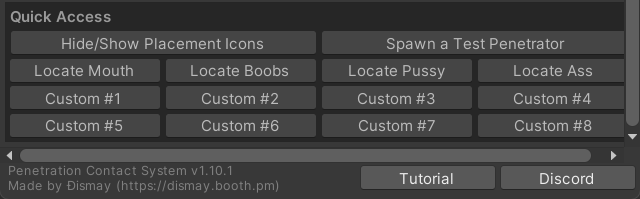
Quick Access Menu
This is the shortcut menu that helps you locate sound object positions. It also allows you to toggle the guide icons on or off and spawn a test penetrator for testing purposes.