Detection Output Parameter
This guide will teach you how to use PCS parameters from the detection system on your own animator controller — to create dynamic and exciting animations, such as making your avatar’s hips react or bounce when an impact is detected at certain intensity level.
You are expected to have basic knowledge of editing an Animator Controller (Playable Layers).
Getting Started
Below is a table list of some available parameters with descriptions, which you can use in your animator controller.
| Name | Description | Type |
|---|---|---|
pcs/contact/in | True once, then false, when a plug goes inward | Bool |
pcs/contact/out | True once, then false, when a plug goes outward | Bool |
pcs/contact/hit | True once, then false, when a plug goes inward with greater intensity (speed) | Bool |
pcs/output/smash-intensity | Level of smash intensity (1-4) for soft, medium, hard, and heavy. | Int |
pcs/contact/proximity | The depth value calculated from the outer area of the spherical receiver to the center point (0.0-1.0) | Float |
pcs/contact/slide-in | Inward sliding checker, 0 means still, (0.01-1.0) means is sliding inward. | Float |
pcs/contact/slide-out | Outward sliding checker, 0 means still, (0.01-1.0) means is slide outward. | Float |
pcs/satisfaction/lust | Lust value in float (-1.0,1.0). Climax event happens when this value equals 0.99, not 1.0 | Float |
pcs/satisfaction/event | Lust value in integer (1-12), refer to event. Where 12 is climax or orgasm event. | Int |
How to Use
To use any of these parameters, you need to follow the steps below.
- Open your Animator Controller (FX)
- Go to the Parameters tab and add the PCS parameter you want to use.
- Make sure you enter the correct parameter name and type. Otherwise, it will create a different parameter and will not sync with PCS.
- You can then freely use that parameter in your animation conditions.
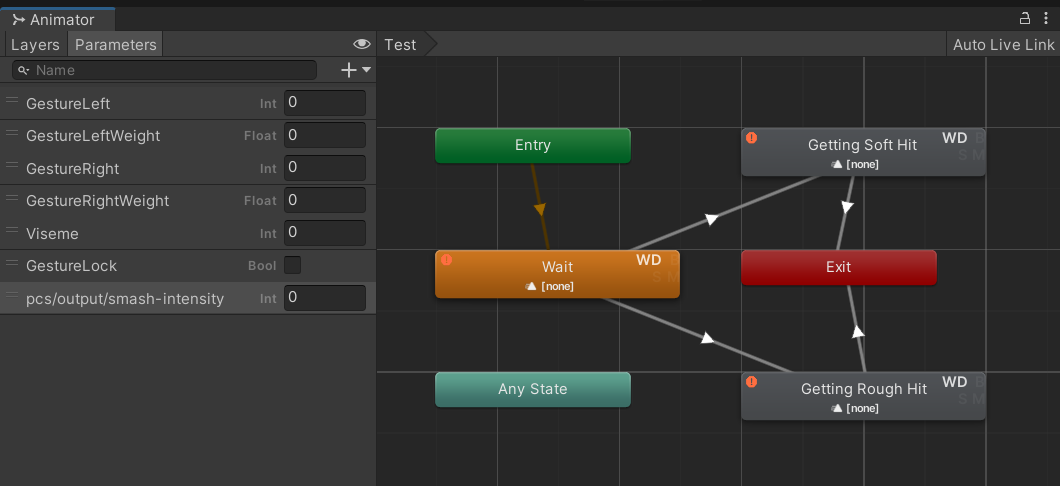
This example demonstrates how to use pcs/output/smash-intensity parameter to reference impact intensity values in order to play different animations.